Intro – Create Your Own Stickers with AI
Printable digital stickers are a fun way to personalize your crafts, planners, laptops, and more. Now, thanks to modern AI tools like Nano Banana Pro, anyone can design unique stickers without graphic design skills.
Nano Banana Pro is Google’s latest image generation and editing model (built on the powerful Gemini 3 AI). It understands natural language prompts and produces high-quality images. In simple terms, you describe the sticker you want, and Nano Banana Pro creates it — including readable text directly inside the image.
In this tutorial, you’ll learn how hobbyists can create printable digital stickers using Nano Banana Pro, from idea to final print-ready file.
What is Nano Banana Pro?
Nano Banana Pro is a state-of-the-art AI image generator and editor from Google DeepMind. It is often referred to as the Gemini 3 Pro Image Model.
Unlike older image generators, Nano Banana Pro:
- Understands complex instructions
- Preserves character consistency
- Produces legible text inside images
- Outputs high-resolution images suitable for printing
You can access Nano Banana Pro through platforms like Google AI Studio or integrated tools such as Zacose, making it beginner-friendly and accessible for hobby projects.
Types of Stickers You Can Create
Nano Banana Pro supports many sticker styles and themes, including:
Character & Animal Stickers
Create cute mascots, pets, or cartoon characters. You can even maintain the same character across multiple designs.
Planner & Decorative Stickers
Design icons like stars, arrows, coffee cups, seasonal items, or minimalist symbols for journals and planners.
Text & Quote Stickers
Nano Banana Pro handles short text very well, making it ideal for word stickers, slogans, and captions.
Photo-Based Stickers
Turn real photos into stylized stickers with white outlines — perfect for personalized gifts.
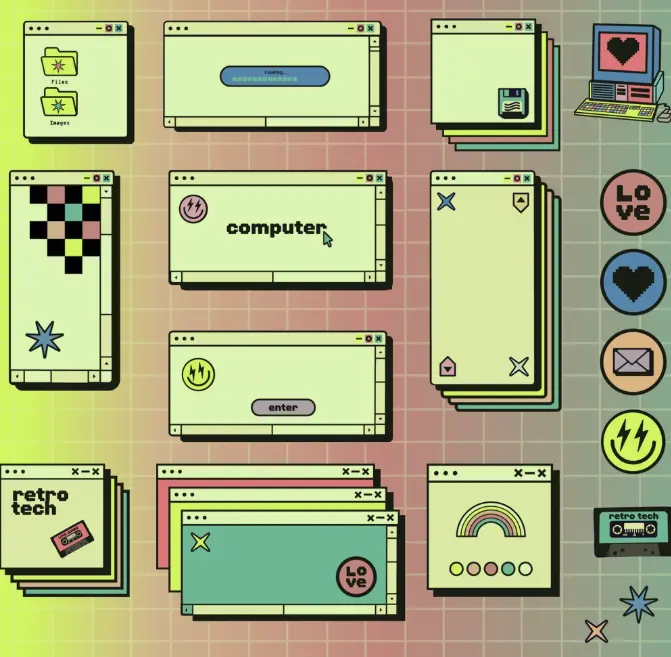
Sticker Sets
Generate multiple themed designs and arrange them into a printable sticker sheet.
What You’ll Need to Get Started
- A computer with internet access
- Access to Nano Banana Pro (Google AI Studio or Zacose)
- An idea or reference image (optional)
- Sticker paper (inkjet or laser, matte or glossy)
- A printer
- Scissors or a cutting machine (Cricut / Silhouette)
- Optional: Canva, Illustrator, or similar layout tools
Step-by-Step: How to Make a Sticker with Nano Banana Pro
Step 1: Plan Your Sticker Idea
Decide:
- Subject (character, object, text)
- Style (cartoon, minimalist, watercolor)
- Whether text is included
- Intended size (e.g. 2–3 inches)
Clear ideas produce better AI results.
Step 2: Open Nano Banana Pro
Open Google AI Studio or Zacose and select the Nano Banana Pro image model.
Make sure you are using the latest image generation model for best quality and text accuracy.
Step 3: Upload a Reference Image (Optional)
If transforming a photo:
- Upload your image
- Optionally upload a style reference
Nano Banana Pro supports multiple reference images for better guidance.
Step 4: Write a Clear Prompt
Example prompt:
“Turn the person in the photo into a cute cartoon sticker with a thick white outline.
Use a web illustration style.
Add the text ‘Sunny Sass’ below the character in a playful font.
Transparent background.”
Tips:
- Be specific
- Keep text short
- Mention background preferences
- Describe the outline clearly
Step 5: Generate & Refine
Click Generate.
If needed, refine with follow-up prompts:
- “Remove background”
- “Increase outline thickness”
- “Make colors more pastel”
You can iterate until satisfied.

Step 6: Export the Sticker File
- Download as PNG
- Ensure high resolution (300 DPI recommended)
- Prefer transparent background
- Avoid JPG if transparency is needed
Step 7: Prepare for Printing
- Open Canva / Word / Illustrator
- Set page size (A4 or Letter)
- Place stickers with spacing
- Resize to final dimensions
- Export as PDF or print directly
Tip: Leave space between stickers for cutting.
Step 8: Print & Cut
- Use high-quality print settings
- Select correct paper type
- Let ink dry fully
- Cut by hand or with a cutting machine
Optional: Laminate for durability.
Tips for Best Results
- Use vinyl sticker paper for longevity
- Aim for 300 DPI at print size
- Test print on normal paper first
- Keep prompts consistent for sticker sets
- Avoid printing too close to page edges
Conclusion
With Nano Banana Pro, creating printable digital stickers is fast, fun, and accessible to hobbyists. From simple text stickers to personalized photo designs, AI removes the technical barriers and lets creativity lead.
Whether you’re decorating planners, making gifts, or experimenting with creative projects, Nano Banana Pro on Zacose gives you professional results with minimal effort.
Start creating, printing, and sharing your own AI-powered stickers today.